To access Windows display settings, right-click your desktop and select Display settings. In Windows 11, press Win + I then navigate to System then Display. From this panel you can change screen resolution, adjust brightness, configure scaling, set up multiple monitors, and manage color settings. All display settings options for Windows 10 and Windows 11 are found in this single panel.
Windows Display Settings Your Complete Setup and Fix Guide
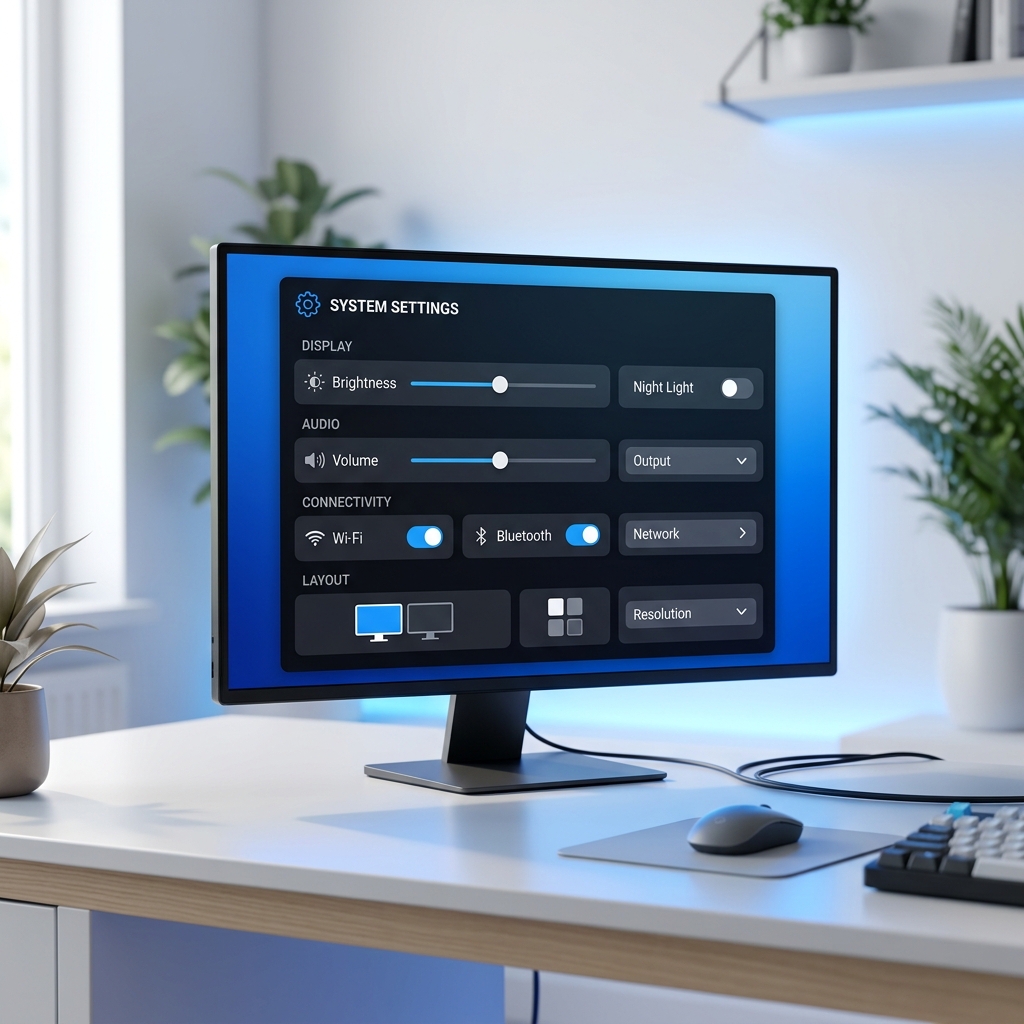
Windows 10 and Windows 11 share the same core display settings panel, but the layout, feature set, and hidden options differ significantly between versions. Over 3,500 monthly searches target Windows display settings on Bing, and most users only discover half the options available to them. This guide walks through every section of the Windows display settings panel, explains what each option does, and shows you how to fix the most common problems — from blurry text after scaling to monitors not being detected.
Windows Display Settings Panel Walkthrough
The Windows display settings panel is organized into logical sections. When you open it (right-click desktop → Display settings), you see the following areas from top to bottom:
- Display identification — numbered rectangles showing your connected monitors. Click "Identify" to flash the number on each screen.
- Brightness and color — brightness slider, night light toggle, and HDR switch (Windows 11 only shows HDR here if your monitor supports it).
- Scale and layout — scale percentage (100%, 125%, 150%, etc.), display resolution dropdown, and display orientation.
- Multiple displays — extend, duplicate, or show only on one screen. Also "Detect" button for monitors not appearing.
- Advanced display — link to refresh rate, bit depth, color format, and display adapter properties.
Each section contains settings that interact with each other. For example, changing your display resolution may automatically adjust the scale percentage. Understanding these dependencies prevents the common "I changed one thing and everything looks wrong" scenario.
Display Settings on Windows 10 vs Windows 11
Windows 11 introduced several display settings improvements over Windows 10. Here are the meaningful differences:
| Feature | Windows 10 | Windows 11 |
|---|---|---|
| Dynamic Refresh Rate (DRR) | Not available | Available — switches between 60Hz and 120Hz based on content |
| Auto HDR | Not available | Available — adds HDR effects to SDR games automatically |
| HDR Certification | Basic HDR toggle | Shows HDR certification level (HDR400, HDR600, HDR1000) |
| Color Management | Control Panel only | Integrated into display settings with sRGB/P3 profiles |
| Night Light Schedule | Sunset to sunrise or manual | Same options, faster toggle via Quick Settings (Win + A) |
| Scale Options | 25% increments only | Custom scaling with 1% increments (advanced) |
If you are still on Windows 10, every feature in this guide works unless explicitly noted as Windows 11 only. The underlying display settings structure is identical — Windows 11 simply adds features on top.
Change System Display Settings in Windows
Changing system display settings follows a consistent pattern: open the panel, find the option, change it, and confirm. Here are the most common changes:
Change Display Resolution
Open display settings, scroll to "Scale and layout," and click the Display resolution dropdown. Select your preferred resolution — Windows recommends the native resolution of your monitor, marked as "(Recommended)." After selecting, Windows gives you 15 seconds to confirm. If the screen goes black or looks wrong, wait 15 seconds and Windows will automatically revert.
Change Display Scale
In the same "Scale and layout" section, click the Scale dropdown. Options are 100%, 125%, 150%, 175%, and 200%. Higher percentages make text and icons larger, which is essential on high-DPI monitors (1440p and 4K). If apps appear blurry after scaling, go to Advanced scaling settings and enable "Let Windows try to fix apps so they are not blurry."
Change Refresh Rate
Scroll to the bottom of display settings and click "Advanced display." Under "Choose a refresh rate," select from the available options. Your monitor determines which rates appear — a 60Hz monitor only shows 60Hz, while a gaming monitor might show 60Hz, 120Hz, 144Hz, or 240Hz. Higher refresh rates require a compatible cable (DisplayPort 1.4 or HDMI 2.1 for high resolutions at high refresh rates).
Display Settings Windows Shortcut Keys
Use these keyboard shortcuts to access Windows display settings faster:
- Win + I → System → Display — opens the full display settings panel
- Win + P — opens the Project panel for multi-monitor mode switching
- Win + A — opens Quick Settings (Windows 11) with brightness slider
- Win + R →
ms-settings:display— direct URI to display settings - Ctrl + Alt + Arrow — rotates screen orientation (Intel graphics only)
System Display Settings Advanced Options
Beyond the standard panel, Windows display settings contain hidden advanced options that power users and IT administrators need. Access these through the "Advanced display" link at the bottom of the display settings panel.
The advanced display page shows your current configuration: resolution, refresh rate, bit depth, color format, color space, and the display adapter (GPU) driving each monitor. Click "Display adapter properties for Display X" to open the legacy Display Properties dialog, where you can access the Color Management tab, list all available resolutions and refresh rates, and configure GPU-specific settings.
For complete details on every advanced option, see our dedicated advanced display settings guide.
Fix Common Windows Display Problems
Most Windows display settings problems fall into five categories. Here are the fixes:
Screen Looks Blurry After Scaling
Go to display settings → Advanced scaling settings → enable "Let Windows try to fix apps." For specific apps, right-click the app shortcut → Properties → Compatibility → "Change high DPI settings" → check "Override high DPI scaling behavior."
Second Monitor Not Detected
Open display settings → scroll to "Multiple displays" → click "Detect." If nothing appears, try: (1) unplug and replug the cable, (2) try a different port (HDMI vs DisplayPort), (3) press Win + P and select "Extend." If none of these work, update your GPU driver from the manufacturer website.
Display Settings Keep Resetting
This usually means a GPU driver conflict. Download the latest driver directly from NVIDIA, AMD, or Intel (not Windows Update). If the issue persists, use DDU (Display Driver Uninstaller) in Safe Mode to completely remove the old driver, then install the new one cleanly.
Brightness Slider Missing
The brightness slider disappears when Windows cannot communicate with your display's backlight. This happens on desktop monitors (which control brightness via OSD buttons) and on laptops with outdated display drivers. Update your display driver and check if your monitor supports DDC/CI (usually enabled in the monitor's OSD menu).
Screen Goes Black After Resolution Change
When you select a resolution your monitor cannot display, the screen goes black. Wait 15 seconds — Windows automatically reverts. If it does not revert, restart in Safe Mode (hold Shift while clicking Restart) and change the resolution back to a supported value.
For a complete factory-reset procedure that restores all display settings to their defaults, see our reset display settings guide. To learn every method of navigating to these settings, visit how to open display settings.
Frequently Asked Questions About Display Settings
Right-click any empty area on your desktop and select Display settings. This is the fastest method and works on both Windows 10 and Windows 11. You can also press Win + I, then go to System, then Display.
Windows 11 reorganized the display settings panel with a cleaner layout. The options are the same but grouped differently. Windows 11 added HDR certification display, auto-HDR for games, and dynamic refresh rate options that Windows 10 does not have.
If display settings will not open, try pressing Win + I to open Settings directly. If Settings crashes, run the System File Checker by opening Command Prompt as administrator and typing sfc /scannow. A Windows Update or a fresh user profile usually fixes persistent Settings app crashes.
Yes. Open Command Prompt or Run dialog with Win + R and type ms-settings:display then press Enter. This URI command opens the display settings panel directly. You can also use PowerShell with the command Start-Process ms-settings:display.
Open display settings, scroll down, and click Advanced display. Under Choose a refresh rate, select your preferred rate from the dropdown. Higher refresh rates like 120Hz or 144Hz provide smoother motion but require a monitor and cable that support the chosen rate.
Display settings resetting usually indicates a graphics driver issue. Update your GPU driver from the manufacturer website (NVIDIA, AMD, or Intel). If the problem persists, uninstall the driver completely using DDU (Display Driver Uninstaller) and reinstall a clean version.