To configure multiple display settings in Windows, right-click the desktop and select 'Display settings'. Use the top visual diagram to rearrange monitors by dragging them to match their physical setup. Press Win + P on your keyboard to toggle between 'Extend' (creates a continuous desktop) and 'Duplicate' (copies the screen). Under 'Multiple displays', click 'Detect' if your screen is not showing up, and ensure you check 'Make this my main display' for your primary workspace monitor.
Multiple Display Settings Your Dual Monitor Setup Guide
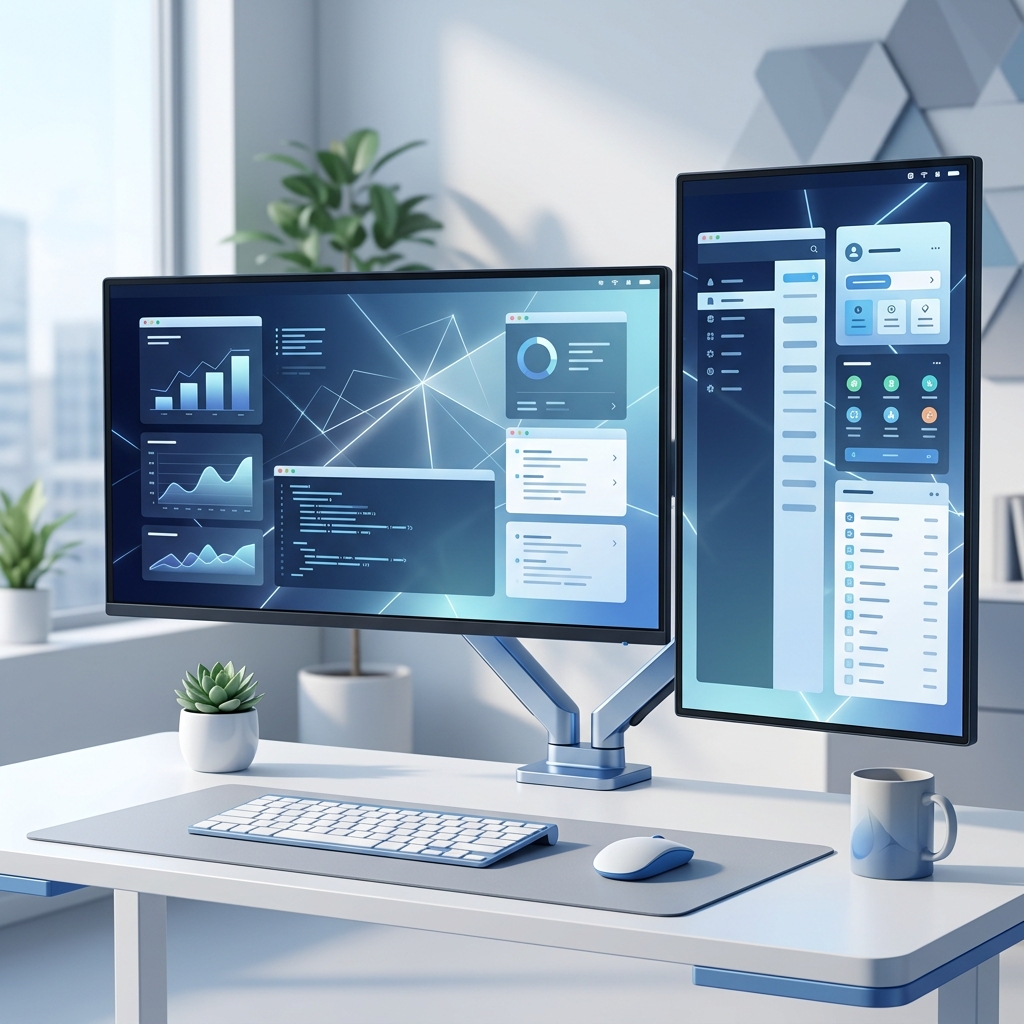
Configuring **multiple display settings** correctly is the key to unlocking productivity with a dual monitor or multi-screen layout. Whether you want to work, game, or stream, managing your screens starts directly in your display settings. This guide covers how to set up dual monitors easily on Windows, select the right project mode, and adjust multi screen display settings to create a seamless desktop workspace.
How to Configure Multiple Display Settings in Windows
To access and modify your **multi display settings**, follow this standard process in Windows 11 and Windows 10:
Open the Multiple Display Settings Menu
Right-click any empty space on your desktop and select Display settings. This will open the Settings app directly to the system display configuration page where all connected screens are displayed.
Identify and Rearrange Your Screens
Click the Identify button under the display diagram. Numbers (1, 2, etc.) will briefly appear on your physical screens. Drag and drop the numbered boxes in the settings layout diagram to match how the monitors sit on your desk. Click Apply to save the arrangement.
Choose Your Primary Monitor
Click on the screen in the diagram that you want as your main workspace. Scroll down, click to expand the Multiple displays section, and check the box for Make this my main display.
Interactive Dual Monitor Layout Configurator
Use this interactive tool to visualize how different **dual display settings** project mode options change your screen layout behavior. Click the buttons below to toggle modes:
Multi Screen Display Settings Options Compared
When you connect multiple monitors, Windows needs to know how to present your desktop workspace. Pressing the keyboard shortcut Windows Key + P opens the quick project menu. Here are the differences between each project screen layout mode:
| Project Mode | Screen Behavior | GPU Load | Best Used For |
|---|---|---|---|
| PC Screen Only | Only primary screen is active; secondary screen goes black. | Low | Saving power, focusing on single-screen work. |
| Duplicate | Clones exact pixels from Screen 1 onto Screen 2. Resolution matches lowest screen. | Medium | Presentations, office meetings, demo displays. |
| Extend | Combines all screens into one large virtual desktop canvas. | High | Daily office productivity, programming, multitasking. |
| Second Screen Only | Primary screen is disabled; secondary screen is the sole workspace. | Low | Docking laptop to a large monitor with laptop lid closed. |
Set Up Dual Monitors with Display Settings
To **set up dual monitors easily windows** setups require matching physical hardware alignments to software expectations. If the monitors are of different physical heights or sizes, you can align their edges in the settings diagram so that your cursor does not get "stuck" when moving between displays.
Simply drag the monitor rectangles up or down in the display settings representation. For example, if your secondary screen sits 3 inches higher than your main screen, drag its representative box slightly higher. Check how your mouse moves between screens. Repeat adjustments until mouse transit is smooth.
Fix Multiple Display Settings Not Detected
If your screens fail to display, try these troubleshooting solutions to fix common detection errors:
1. Force Display Detection
Open display settings, scroll to the Multiple displays section, and click the Detect button. This prompts Windows to re-interrogate connection ports for monitor hardware signals.
2. Check Graphics Driver Hardware Compatibility
If Windows is unable to negotiate resolutions, it may default to single-screen modes. Right-click Start, select Device Manager, expand Display adapters, right-click your active GPU (NVIDIA, AMD, or Intel), and select Update driver. If drivers are corrupted, download clean installation packages from manufacturer websites.
3. Inspect Cable Signals
High-resolution displays (4K, high-refresh rates) require correct cables. Ensure you are using HDMI 2.0/2.1, DisplayPort 1.4, or certified USB-C/Thunderbolt cables. If using docks, bypass the dock and plug directly into your PC's GPU port to verify hardware function.
Optimizing **multiple display settings** creates a highly effective workspace. By properly arranging screens, choosing between extended and duplicated desktops, and keeping GPU drivers updated, you ensure smooth mouse transitions and clean monitor layouts. For setting up extended display details, check out our guide on extended display settings. If you are configuring external hardware connections or wireless displays, visit our guide on external display settings.
Frequently Asked Questions About Display Settings
Right-click the desktop and choose Display settings. In the panel that opens, you will see a visual representation of your connected monitors. You can rearrange them, select which monitor is primary, change resolutions, and configure scaling for each screen individually.
Duplicate copies the exact same desktop layout onto all screens, which is ideal for presentations. Extend stretches your workspace across all monitors, creating one large continuous desktop. This allows you to work with different apps open on different screens simultaneously.
Open multiple display settings, select the monitor box you want as primary in the layout diagram at the top, scroll down to the Multiple displays section, click to expand it, and check the option Make this my main display. This screen will now host your taskbar icons and notifications.
First, check cable connections (HDMI, DisplayPort, USB-C). Press Win + P to ensure a multi-monitor mode is selected. In display settings, click the Detect button under the Multiple displays dropdown. If the screen is still black, update your graphics card drivers via Device Manager.
Plug the second screen into your GPU or laptop HDMI port. Windows will auto-detect it. Press Win + P and select Extend. Open display settings, arrange the screens to match their physical positions, and adjust the scale settings to make text comfortably readable.